

Site Board is included on some plans.
Find your site cards
Open Site Board in the left sidebar.Add a site card
- Turn on land boundaries in the Land & Ownership tab or the layers menu.
- Select the land parcel you are interested in.
- In the pop-up, click the plus icon and choose Add to Site Board.
Use the Site Board
The Site Board works like a project management or kanban board. How you use it depends on your role.- Click New Column to add a column. Use the menu at the top of a column to rename, move or delete it.
- Drag and drop site cards between columns. The number beside each column name shows how many site cards it holds.
- Click Show full info on a site card to see the details of the land plot.
- Click Export to CSV or Export to Excel to download all your sites.
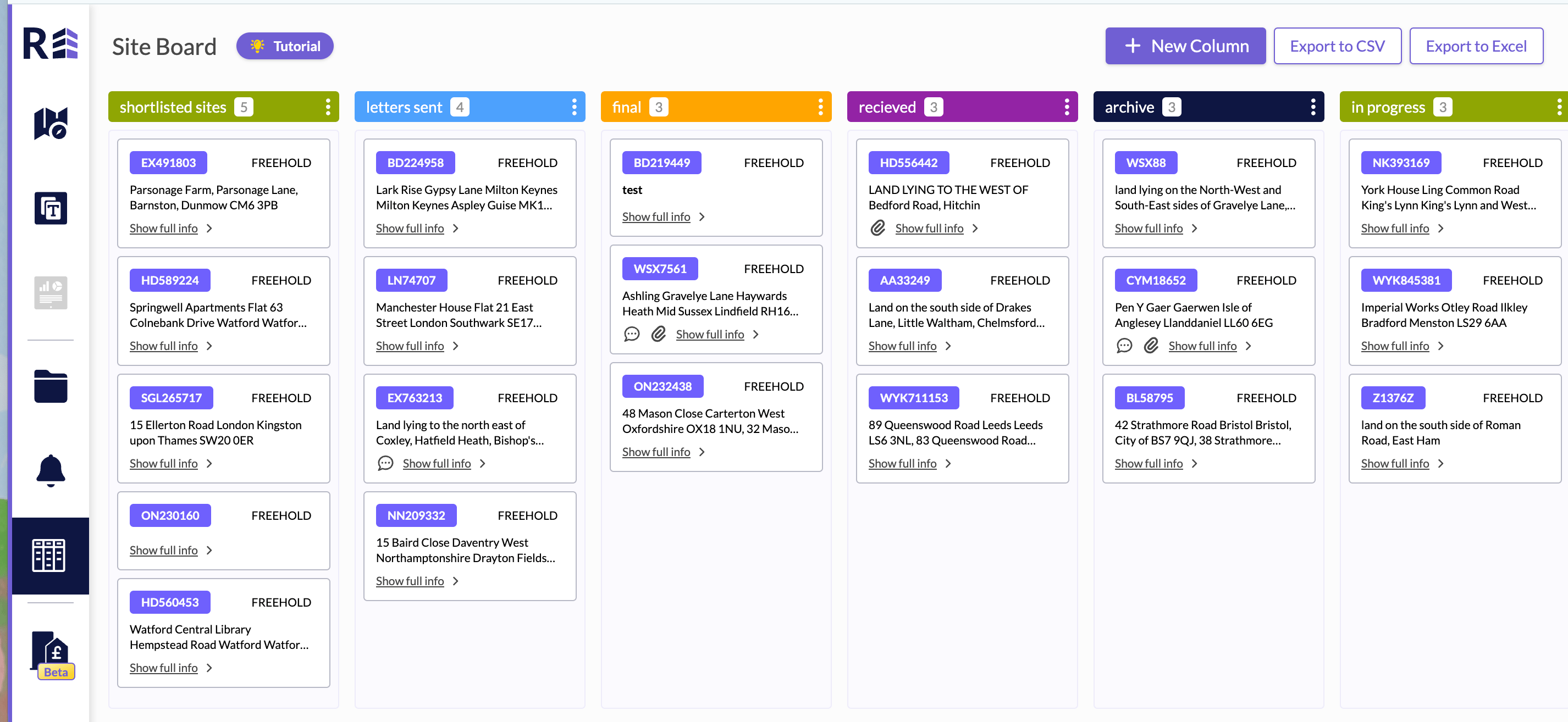
The Site Board with site cards organised into columns.
Add notes and documents to a site card
Click anywhere on a site card to open Card Detail. It shows the title number, tenure and Address of the site.- Optionally, type a Title for the card.
- Type your research in Note, then click Save. Click Cancel to discard the note.
- Under Attachments, drag and drop files or click click to upload. You can add up to 5 files of up to 50 MB each. Only csv, doc, jpg, png, pdf, xls and txt files are supported.
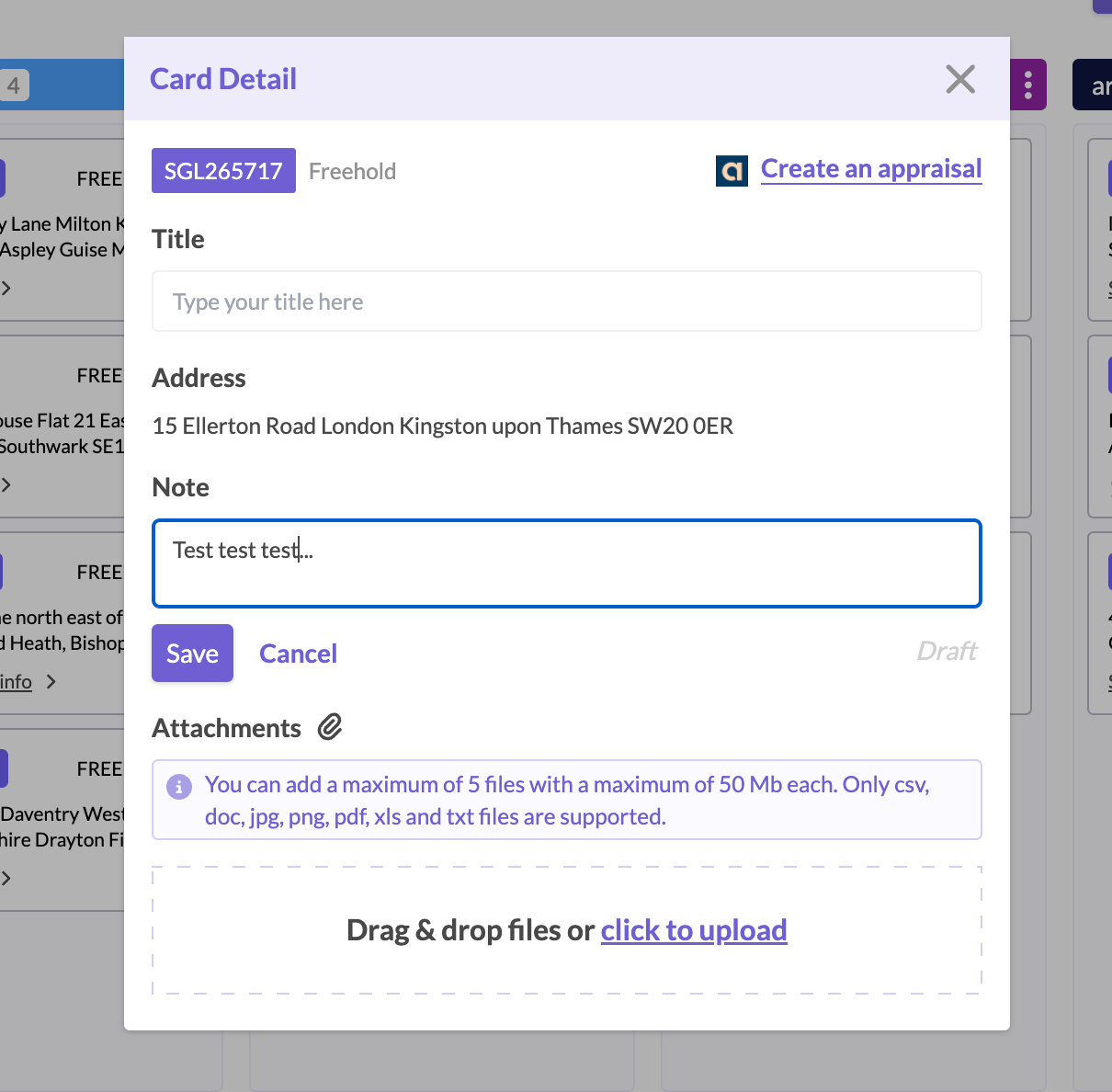
Card Detail for an open site card.