

Find templates
Templates are below the Explore icon in the left sidebar. There are three types:- Global: Created by the REalyse team. These give comprehensive reports on key areas, such as Build to Sell.
- Team: A custom report you create and share with anyone in your organisation who has a REalyse login.
- Personal: A custom report you create for yourself. You can open it at any time from your personal templates.
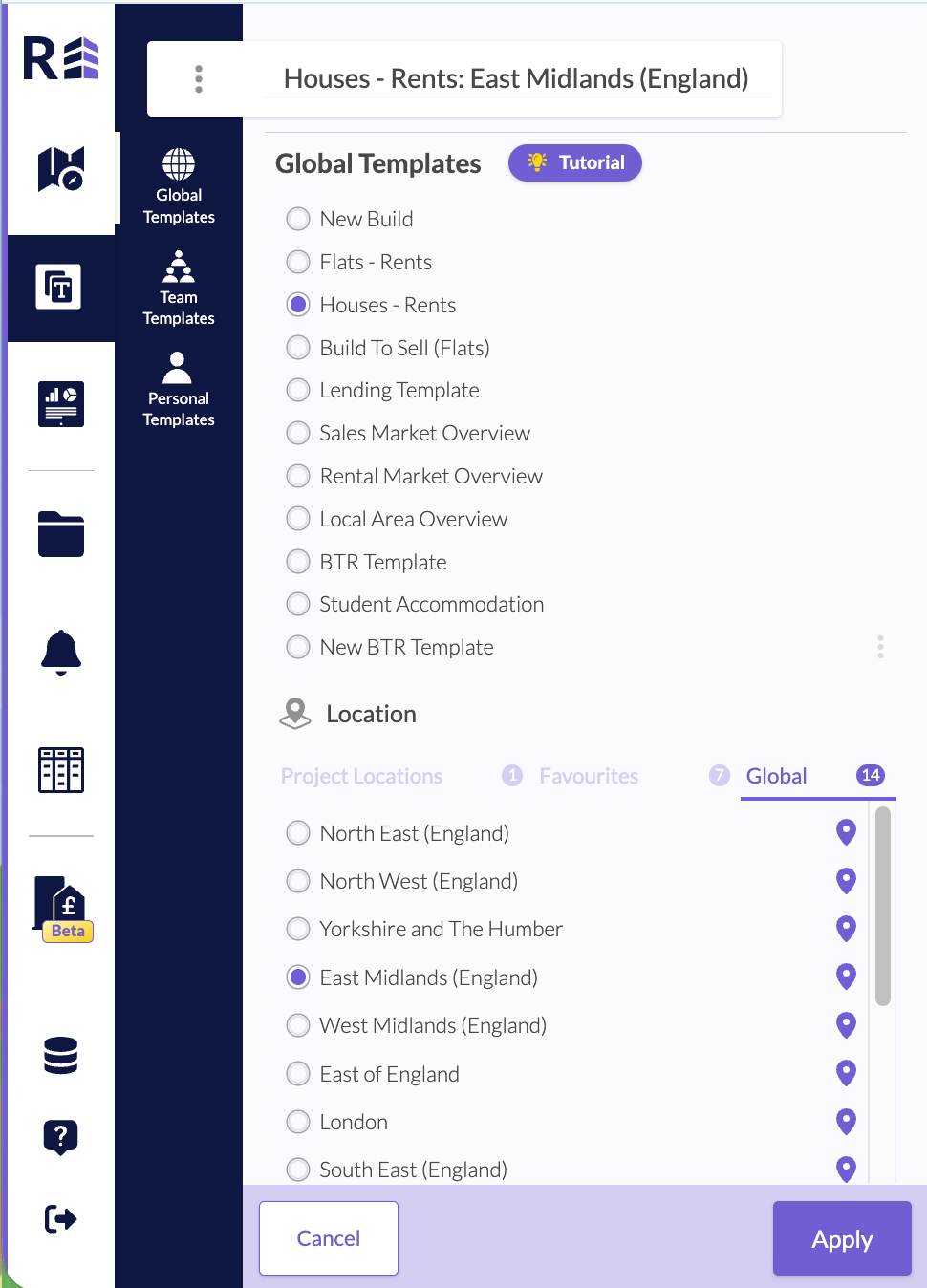
Global Templates with a location selected.
Create and save a template
A template is built from the data in your dashboard.- Finish your search and arrange your dashboard the way you want it.
- Click the three dots beside the project name.
- Choose Save as template.
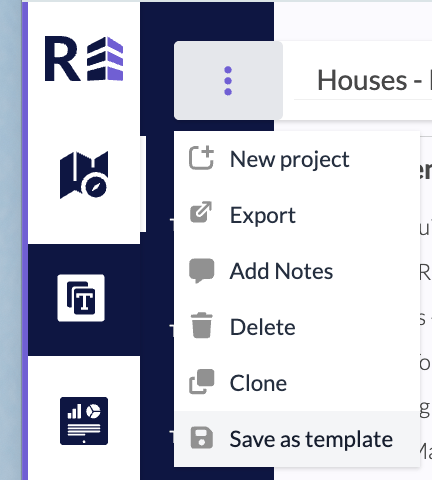
The project menu with Save as template.
You can save a template only when your project has one location. A template applies to one location at a time.